

Creating Queries
There are two ways to create queries in Flipspace:1. Create from Scratch
Create a new query directly in the SQL Editor:- Navigate to Queries and click New Query
- Write your SQL in the editor
- Run and test your query
- Save with a descriptive name
2. Save from Chat
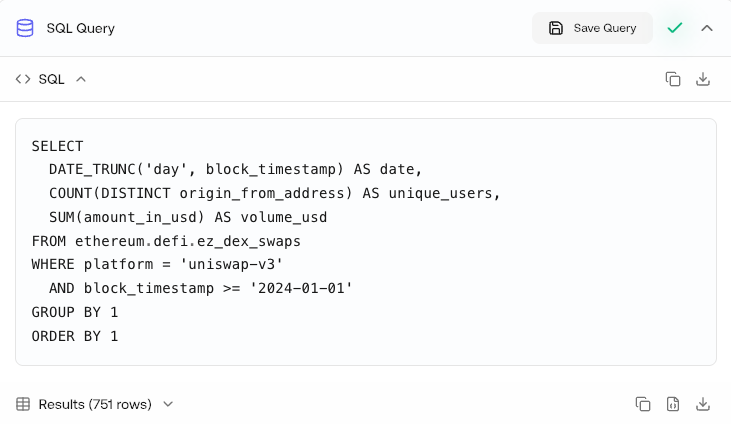
When using Chat, any SQL it generates can be saved:- Ask a question that requires data analysis
- Chat will generate and confirm the SQL with you
- Once the query runs successfully, click the Save Query button
- The query is now accessible in your Queries dashboard and automations
Viewing Queries
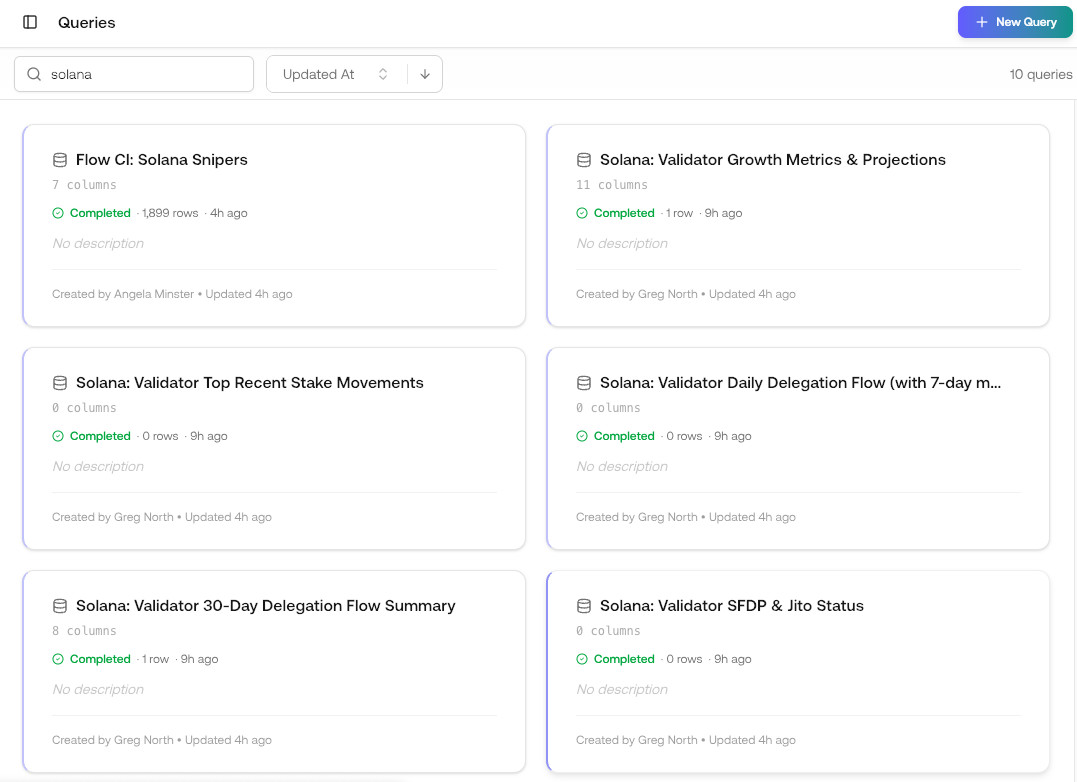
Navigate to Queries to see all your saved queries. Each query displays:- Query name: Descriptive title for the query
- Last modified: When the query was last updated
- Last run: When the query was last executed
- Created by: Who authored the query
Working with Queries
Click on any saved query to open it in the SQL Editor. From there you can:- Run the query to get fresh results
- Modify the SQL to adjust your analysis
- Save changes or Save as new to create a copy
- Export results in various formats
| Action | Description |
|---|---|
| Run | Execute the query and view results |
| Edit | Open in SQL Editor for modifications |
| Duplicate | Create a copy of the query |
| Delete | Remove the query permanently |
Using Queries in Automations
Saved queries can be added to your automations as Query blocks. This lets you build repeatable workflows that run your analysis on a schedule or trigger.Learn more about Automations
Build automated workflows with your saved queries
Next Steps
SQL Access
Write and execute custom SQL queries
Data Explorer
Browse available tables and schemas